Track-Details watches Serato DJ or VirtualDJ, shows the track you're playing with its credits and story, and sends it to OBS. This guide covers every part of the window, the menu-bar icon and the settings.
The main window at a glance
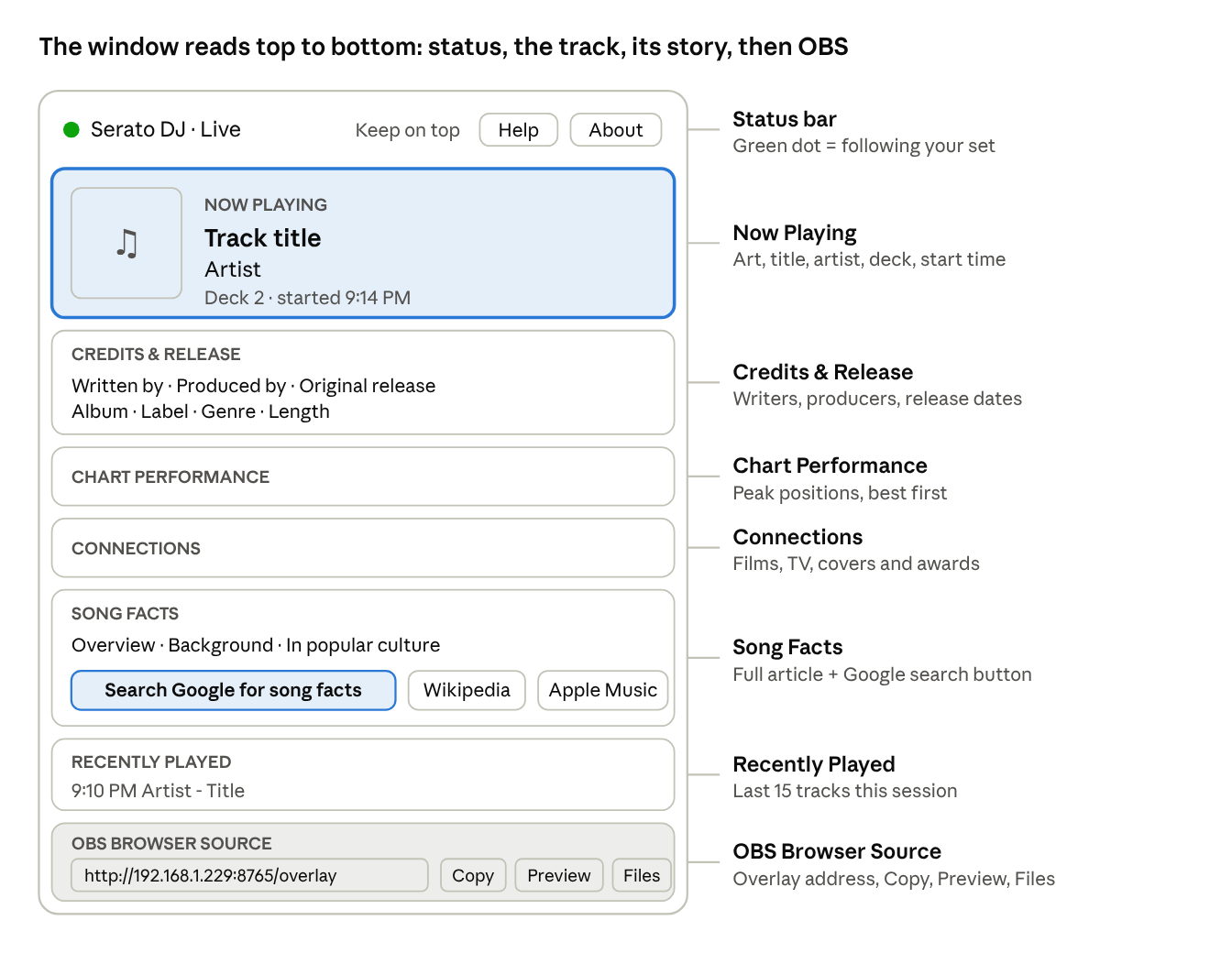
The track and everything about it fill the middle and scroll; the status bar stays at the top and the OBS strip stays at the bottom. Each area has its own section below.
Getting started
Install Track-Details, allow the permissions macOS asks for, and start your DJ software. Track-Details finds it on its own within about 5 seconds.
Download the installer for your Mac from track-details.com: the main download for Apple Silicon Macs (M1 to M4), or the Intel version for Intel Macs. Not sure? Apple menu > About This Mac lists a Chip (Apple Silicon) or a Processor with Intel in the name. Track-Details needs macOS 12 Monterey or later.
Open the installer (.dmg) and drag Track-Details into Applications.
Launch it from Applications or Launchpad. The main window opens, an icon appears in the Dock, and a vinyl icon appears in the menu bar.
Say Allow to each permission macOS asks for. The table below says why each one matters.
Start Serato DJ or VirtualDJ and play a track.
| macOS asks to... | Why Track-Details needs it | If you say no |
|---|---|---|
| Access files in your Music folder | Serato keeps its play history there | Serato tracks are not detected |
| Access files in your Documents folder | VirtualDJ history (older versions) and the now-playing files Track-Details writes | VirtualDJ may not be detected; no output files |
| Accept incoming network connections | Lets OBS on another computer load the overlay | The overlay works only on this Mac |
| Control Google Chrome | Only for the optional incognito song-facts search | Searches open in your default browser instead |
Serato DJ (Pro or Lite) needs no setup. Serato logs a track a few seconds after it starts, so expect a short delay before it appears.
VirtualDJ must save its history. In VirtualDJ, open Settings > Options, set writeHistory to Yes, then restart VirtualDJ. A track appears once VirtualDJ writes it to history.
If both programs are open at once, Track-Details follows Serato.
Status bar
The colored dot at the top left tells you at a glance whether Track-Details is following your set. Green means it is.
| Dot | Message you'll see | What it means |
|---|---|---|
| Green | Serato DJ · Live | Following your DJ software; the track shown is current |
| Amber | VirtualDJ · waiting for first track | DJ software found, but nothing has been logged yet. Play a track, or check VirtualDJ's writeHistory setting |
| Amber | Permission needed — allow access to your Music/Documents folders | macOS is blocking Track-Details from reading the history files. See Troubleshooting |
| Gray | No DJ software running | Neither Serato DJ nor VirtualDJ is open |
| Gray | Starting… | Shown for a moment at launch |
Three controls sit at the top right:
Keep on top keeps the Track-Details window above every other window, including your DJ software. Handy on a single screen during a set. The choice is remembered.
Help opens this guide.
About shows the version number and app information.
Now Playing
The orange card shows the track that's playing right now, and it changes by itself when you mix into the next one.
Artwork: album art found online. A music-note placeholder shows while it loads, or when none is found.
Title and artist: as tagged in your library, tidied up for display. Record-label tags in square brackets, like [Greensleeves], and asterisks are removed.
Deck and start time: which deck the track is on and when it started, for example Deck 2 · started 9:14 PM. Serato reports the deck; VirtualDJ history does not, so only the time shows.
Credits, charts and connections
These three cards fill in a few seconds after each track change, while Track-Details looks the song up online. A row only appears when information was found, so a deep cut may show just a few.
Credits & Release
| Row | What it shows |
|---|---|
| Performed by | The credited artist or artists |
| Written by | Songwriters, composers and lyricists |
| Produced by | Producers and co-producers |
| Original release | When the song first came out |
| This release | The release date of the version found on iTunes, when it differs from the original (labelled Released when the original date is unknown) |
| Album | The album, single or soundtrack it appears on |
| Label | Record label |
| Genre | Genre, from up to four sources |
| Length | Running time of the version found on iTunes |
| Recorded at | Studio, when known |
When nothing is found, the card reads No credits found for this track.
Chart Performance lists each chart the song reached, with its best position and the year, best first. For example: Billboard Hot 100 — #1 (1984). The card is hidden when the song has no chart history on record.
Connections shows, when known:
Featured in: films, TV shows and games that used the song.
Based on / cover of: the original song if this is a cover, rework or answer record.
Awards: awards the song won.
All text in these cards can be selected and copied, for example to paste into chat.
Song Facts
Song Facts gives you the story behind the track, so you have something to say on the mic. It holds the song's full Wikipedia article, broken into sections.
Heading: the song's name in quotes. If the song has no article, it reads No article for this song yet — about [artist] and shows the artist's background instead.
Sections: each part of the article (Background, Composition, Commercial performance, Music video, In popular culture and so on) is a row you click to open or close. The first one opens automatically. Text can be selected and copied.
Search line: shows the exact Google search the button runs, for example Bob Marley, Jamming, song facts.
| Button | What it does | Shows when |
|---|---|---|
| Search Google for song facts | Opens a Google search for the track, the same search the old watch_nowplaying.sh script ran | Always, once a track is playing |
| Wikipedia | Opens the full article in your browser | An article was found |
| Apple Music | Opens the track on Apple Music | The track was found on iTunes |
Two checkboxes control the Google search:
Open the Google search automatically when the track changes: runs the search on every new track, without a click. Off by default.
Reuse one incognito Chrome window (Mac only): sends every search to the same private Chrome window instead of opening new tabs. It doesn't bring Chrome to the front, so your DJ software keeps focus. If Chrome isn't installed, searches open in your default browser.
Wait before showing a new Serato track: Serato records a track the moment you load it, so Track-Details would otherwise switch straight away. It waits this many seconds (5 by default) and only switches if the track is still loaded. Load something else during the wait and the count starts again. Set it to 0 to switch instantly.
The Sources line at the bottom names where this track's information came from: Wikipedia, Wikidata, MusicBrainz and iTunes. Facts are remembered for the rest of the session, so a track you play again appears instantly.
Recently Played
Recently Played lists the last 15 tracks of this session, newest at the top, each with the time it started. It clears when you quit Track-Details; for a lasting record, use the daily setlist file (see Output files and settings).
OBS Browser Source
The strip along the bottom of the window connects Track-Details to OBS or StreamElements. Add a Browser Source in OBS, paste in the address from the box, and set it to 900 × 220.
| Control | What it does |
|---|---|
| Address box | The overlay address for OBS, for example http://192.168.1.229:8765/overlay. It works from this Mac and from any computer on the same network |
| Copy | Copies that address, ready to paste into OBS |
| Preview | Opens the overlay in your browser on this Mac, so you can check it before going live |
| Files | Opens the folder where Track-Details writes its now-playing files and setlists |
The line under the buttons says whether other computers can reach the overlay, and where the files are saved.
OBS on a second computer (for example, a streaming laptop): both computers must be on the same network. Use the address from the box exactly as shown, including the numbers. If macOS asked whether Track-Details may accept incoming connections and you said no, allow it in System Settings > Network > Firewall.
Overlay options: add these to the end of the address to change how the overlay looks. Combine them with &, for example http://192.168.1.229:8765/overlay?theme=minimal&hideAfter=20.
| Add to the address | Effect |
|---|---|
| ?theme=minimal | Plain black card instead of the sunrise gradient |
| ?label=0 | Hides the NOW PLAYING label |
| ?hideAfter=20 | Slides the overlay away 20 seconds after each track change (use any number of seconds) |
The overlay slides in with a spinning record and the album art on every track change. It reconnects by itself if Track-Details restarts.
Menu-bar icon and closing the window
Closing the window does not stop Track-Details: it keeps following your set and feeding OBS in the background. Quit it only when you're done for the night.
Bring the window back: click Track-Details in the Dock, or choose Show Track-Details from the menu-bar icon.
Quit: press Cmd+Q, or choose Quit Track-Details from the menu-bar icon or the Dock.
The vinyl icon in the menu bar works even when the window is closed:
| Menu item | What it does |
|---|---|
| ♫ Artist - Title | The current track, for a quick glance (not clickable) |
| Show Track-Details | Opens the main window |
| Search Song Facts | Runs the Google song-facts search for the current track |
| Open Overlay in Browser | Previews the OBS overlay on this Mac |
| Copy Overlay URL for OBS | Copies the overlay address to paste into OBS |
| User Guide | Opens this guide |
| About Track-Details | Version and app information |
| Quit Track-Details | Stops tracking and closes the app |
About Track-Details is also in the Track-Details menu at the top left of the screen, and this guide is under Help > Track-Details User Guide in the menu bar. On Windows, press F1 in the main window.
License and free trial
Track-Details runs free for 14 days with everything turned on. A banner at the top of the window shows how many days are left. You don't need to sign up or enter a card to try it.
Buying a license
A license is a one-time purchase, not a subscription. One key works on two computers, such as your DJ laptop and a backup.
- Click Buy in the banner, or open License… from the Track-Details menu or the menu-bar icon and click Buy Track-Details.
- Your web browser opens a secure checkout page run by Stripe. Pay by card. Use an email address you can check right away, because that's where your key goes.
- After paying, you land on a thank-you page at track-details.com.
What arrives in your email
You get two emails, usually within a few minutes:
| What it's for | |
|---|---|
| Receipt (from Stripe) | Proof of purchase. Keep it for your records. |
| License key (from Keyforge, our licensing service) | Your key and the product it's for. This is the one you need to activate. |
No key after an hour? Check your spam or junk folder first. Then see Lost your key? below.
Activating
- Open License… (Track-Details menu, the menu-bar icon, or Enter license in the banner).
- Copy the whole key from the email and paste it into the box. Extra spaces are fine.
- Click Activate. Your computer needs to be online for this step.
When it works, you see Activated. Thanks for supporting Track-Details!, the banner disappears, and the overlay, files and song facts switch back on if the trial had ended. The License window now shows your key (partly hidden) and how many computers it works on.
Activating doesn't need the app to restart, and it doesn't reset any settings.
Messages you might see
| Message | What it means and what to do |
|---|---|
| Free trial: 9 days left | Everything works until the trial ends. |
| Your free trial has ended | The window still shows the track, but the overlay, files and song facts are paused until you activate. |
| Activated on this computer | You're licensed. Nothing more to do. |
| That license key wasn't found | The key was mistyped or cut short. Copy it again from the email, all of it. |
| Already active on its maximum number of computers | The key is on two computers already. Deactivate it on one (see below), or email support. |
| This license key has been turned off | The purchase was refunded or the key was revoked. Email support if that's a mistake. |
| Couldn't reach the license server | Check your internet connection and try again. |
Moving to a new computer
Open License… on the old computer and click Deactivate this computer. That frees one of your two places. Then activate the same key on the new computer.
Old computer lost, broken or already wiped? Use the customer portal under Lost your key? to remove it, or email support and we'll free the place for you.
Lost your key?
Click Lost your key? Look it up by email in the License window, or go to keyforge.dev/portal/request. Enter the email you paid with and you'll get a sign-in link (valid for 48 hours) that shows your license and the computers using it.
Using it offline
Track-Details checks your license online about once a week, in the background. If it can't reach the internet it keeps working for 30 days, so a gig without Wi-Fi is fine. Once you're back online it checks again by itself.
Help with your license
Email support@track-details.com with the email address you paid with.
Output files and settings
Track-Details writes three files to Documents/Track-Details (click Files to open the folder). OBS text sources and your own scripts can read them.
| File | Contents | Updated |
|---|---|---|
| nowplaying.txt | One line: Artist - Title. Point an OBS Text source at it with "Read from file" on | Every track change |
| nowplaying.json | The current track's details for custom overlays and scripts (fields below) | Every change, including when facts arrive |
| setlist-YYYY-MM-DD.txt | One line per track played that day, with the time it started, e.g. 21:14 Bob Marley - Jamming | Every track change |
The same JSON is served live at /nowplaying.json on the overlay address, for example http://192.168.1.229:8765/nowplaying.json. Its fields: app, title, artist, album, deck, artworkUrl, released, genre, writers, producers, songFactsQuery, startedAt, updatedAt.
Settings. The checkboxes in the window save themselves. Everything else lives in a settings file at ~/Library/Application Support/Track-Details/settings.json. Open it in TextEdit, change a value, save, and restart Track-Details.
| Setting | Default | What it controls |
|---|---|---|
| OverlayPort | 8765 | The number at the end of the overlay address. Change it if another app uses 8765, or to match an existing OBS source |
| AllowNetworkAccess | true | Lets OBS on other computers load the overlay; false keeps it to this Mac |
| PollSeconds | 1.0 | How often, in seconds, Track-Details checks for a new track |
| OutputFolder | Documents/Track-Details | Where the three files above are written |
| LookUpSongFacts | true | Looks up credits, charts and song facts online; false turns the lookups off |
| AutoOpenGoogleSearch | false | Same as the auto Google search checkbox |
| GoogleSearchInChromeIncognito | true | Same as the incognito Chrome checkbox |
| SeratoDelaySeconds | 5 | Same as the Serato wait box: seconds a new Serato track must stay loaded before it's shown |
| VirtualDjDelaySeconds | 0 | The same wait for VirtualDJ (no box in the window) |
| KeepOnTop | false | Same as the Keep on top checkbox |
| SeratoSessionsFolder | (automatic) | Where to find Serato's history, if your library is on an external drive. Point it at the drive's Serato/History/Sessions folder |
| VirtualDjHistoryFolder | (automatic) | Where to find VirtualDJ's History folder, if it isn't in the usual place |
Troubleshooting
Most problems come down to a macOS permission or a DJ software setting. Find the symptom below.
| Problem | Fix |
|---|---|
| Dot is gray with Serato or VirtualDJ open | Wait 5 seconds. If it stays gray, quit and reopen the DJ software, then Track-Details |
| Amber: waiting for first track (VirtualDJ) | In VirtualDJ, set Settings > Options > writeHistory to Yes and restart VirtualDJ. Then play a track for at least 30 seconds |
| Serato shows an old track, or never changes | Update to Track-Details 0.8.1 or later, which reads Serato DJ Pro 4's new history database as well as Serato 3's session files. Then play a track for a few seconds. If it still happens, run the diagnostics below and send the output to support |
| Amber: waiting for first track (Serato) | Play a track for a few seconds; Serato logs it shortly after it starts. If your Serato library is on an external drive, set SeratoSessionsFolder (see Settings) |
| Amber: Permission needed | Open System Settings > Privacy & Security > Files and Folders, find Track-Details, and turn on Music Folder and Documents Folder. Then restart Track-Details |
| Track appears late | Normal: Serato and VirtualDJ record a track a few seconds after it starts |
| Song facts are thin or missing | The song has little published information. Use Search Google for song facts |
| Song facts are for the wrong song | Usually a title that matches a different, better-known song. Use the Google button for now |
| OBS on another computer shows nothing | Open the overlay address in a browser on that computer. If it doesn't load: check both are on the same network, allow Track-Details in System Settings > Network > Firewall, and confirm AllowNetworkAccess is true |
| "Couldn't start overlay server" at the bottom of the window | Another app is using the port. Quit the other now-playing app, or change OverlayPort in settings.json |
| Overlay works but shows the old style | Refresh the browser source in OBS (right-click it > Refresh) |
| Auto Google search doesn't open Chrome | Allow Track-Details to control Google Chrome in System Settings > Privacy & Security > Automation |
| "This application is not supported on this Mac" | You downloaded the version for the other kind of Mac. Delete it from Applications, then download the other version from track-details.com (Apple Silicon or Intel; see Getting started). Your license works with either |
| "Track-Details can't be opened" on another Mac | That copy isn't signed for public release yet. Open System Settings > Privacy & Security and click Open Anyway |
| The window disappeared | It's still running. Click Track-Details in the Dock or use the menu-bar icon |
Diagnostics
If a problem isn't listed above, Track-Details can print a report of what it sees. With your DJ software open and a track playing, open Terminal and run:
/Applications/Track-Details.app/Contents/MacOS/TrackDetails --diagnoseIt lists where it looks for each DJ program's history and the most recent tracks it found. Copy the output into an email to support@track-details.com.